Allow date change online
It is possible to allow ticket buyers to do their own online ticket exchanges. Rules can be set to enable changes for subscribers only, ticket buyers only, ticket buyers for a specific event group only, etc.
To activate this in the online environment multiple modules need to be configured.
Season
Navigate to Administration > Season and select the season exchanges should be allowed on. Exchange rules can be set per season and it is only possible to exchange to events that are part of the same season.
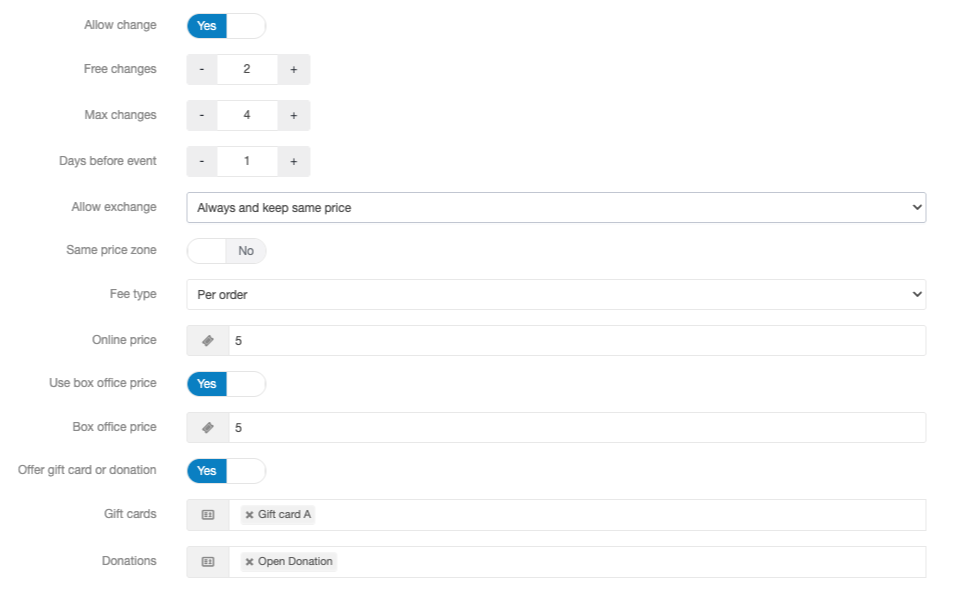
Allow changes
- Set to yes when online exchanges should be allowed within the season.
Free changes
- Define whether and how many free exchanges a customer can make.
Max changes
- Define whether the customer should only be allowed to make a certain number of exchanges. If set to 0, unlimited exchanges are allowed.
Days before event
- Specify how many days prior to the start of the event exchanges should no longer be allowed.
- 1 day means up until 24 hours before the start date and time.
Allow exchange
- Select one of the following options:
- If ticket type is available online - Only Event Dates where the same ticket type is configured as Available Online in the Access tab will be available for exchange.
- If ticket type is available on event date - Exchanges will be available to Event Dates where the same ticket type exists. The ticket type does not have to be configured as Available Online on the Event Date.
- Always and keep same price - Any Event Date within an Event Group that is configured to allow exchanges may be selected. Tickets will be exchanged to the same ticket type and price, even if that ticket type is unavailable on the selected Event Date.
- Select one of the following options:
Same price zone
- If set to yes, the customer is only allowed to exchange the tickets within the same price zone as the original seat.
Fee type
- Select if an exchange fee should be charged per order or per ticket.
Online price
- Amount that will be charged when exchanging tickets online.
Box office price
- Set to yes if an exchange fee should be charged in Box Office and define the fee amount that should be charged.
Offer gift card or donation
- Select whether the customer will receive a gift card or make a donation when the new tickets are less expensive than the original tickets. Then select which, if any, gift card and / or donation will be available
Online it is only possible to exchange to a new event, it's not possible to move to different seats within the same event.
Event groups
Navigate to Administration > Events > Groups to configure settings on event group level under the tab Advanced.

Allow changes
- Select one of the exchange options:
- No: It is not possible for the ticket buyer to exchange tickets themselves.
- Within same event group: It will be possible for the ticket buyer to exchange their tickets to another show within the same event group. E.g. to another date of the same production.
- To any group with same promoter: It will be possible for the ticket buyer to exchange tickets to another event with the same promoter. E.g. to another concert hosted by Promoter X (not necessary the same production). The other event groups must (also) have Allow changes to this group active (see below).
- To all event groups: It is possible for the ticket buyer to exchange their tickets to any event group that has Allow changes to this group active.
- Select one of the exchange options:
- Allow changes to this group
- If set to yes, it is possible to exchange tickets to events in this group. Of course, within the rules that are selected on Allow changes.
Event groups must be available online in order for online exchanges to work.
Events
To enable online exchanges, the above settings must be configured on Season and Event Group level, but also on Event level there are some settings that need to be configured.
Go to Administration > Events > Dates and set the event to Available online. Only when the online sale of the event has started is it possible to exchange to the event.
If the event should be available for online exchanges but not (yet) for regular sales, set the Sales status to Sales not scheduled under the Information tab.
Online exchanges are not possible if the Sale status is set to Cancelled or for past events.
Ticket Type
By default, all ticket types are enabled for online exchanges. To prevent a specific ticket type from being exchanged online, navigate to Administration > Tickets > Ticket Types. Under the Information tab, the Allow exchange online setting can be disabled for the relevant ticket type.

Subscription
To allow exchanges on a subscription, you first need to set the settings described above for the season that the subscription is connected to. Then navigate to Administration > Subscriptions and go to the Internet tab.

Allow change
- Select one of the exchange options:
- Within same event group: The subscription holder can exchange tickets to any event date within the same event group as the original event.
- Event groups in subscription: The subscription holder can exchange their ticket from one event group to another event group within the subscription.
- To any event group: The subscription holder can exchange their ticket to any event group that is in the same season as the subscription and has exchanges allowed on event group level.
- Select one of the exchange options:
Change outside subscription
- Select whether exchanges outside the subscription are allowed:
- If set to no, the subscriber can only exchange to the events that are already inside the subscription.
- If set to yes, it is possible to exchange to any event based on set rules.
- Select whether exchanges outside the subscription are allowed:
Customer Tag
Under the Benefits tab of the Customer Tags module (Administration > Customers > Tags), the number of free ticket exchanges allowed for customers assigned to the tag can be overridden.
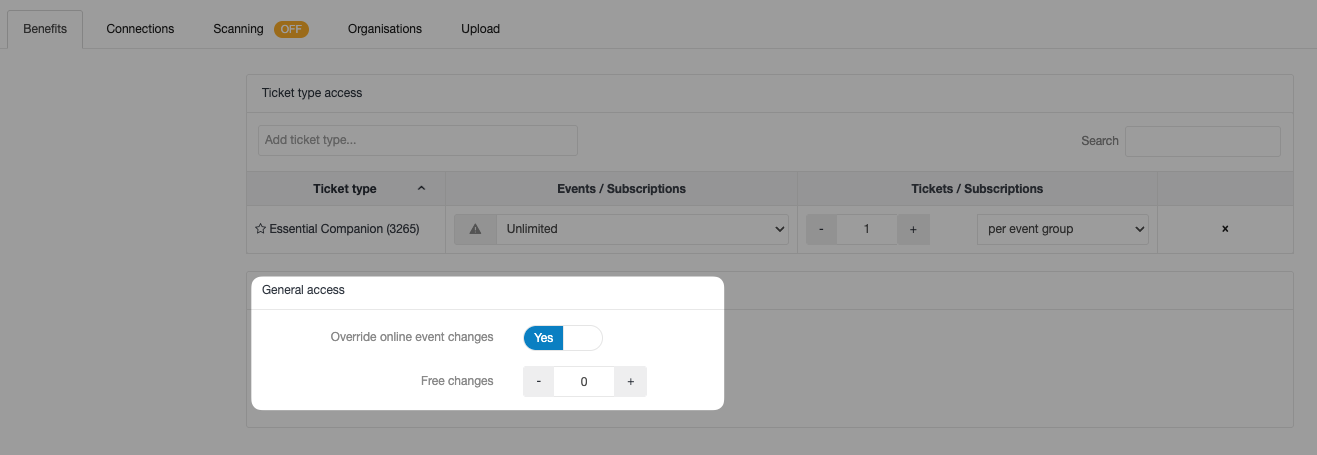
For unlimited free exchange access, a high number should be set here as the number of remaining free exchanges available is only listed on the receipt page if the number of free exchanges is 10 or lower.
In addition, customer tags that grant benefit access to a specific Ticket Type will have access to that Ticket Type for exchanges. Early Access set for a customer tag on an Event Date will also apply to exchanges online for available events.


Was this article helpful?
That’s Great!
Thank you for your feedback
Sorry! We couldn't be helpful
Thank you for your feedback
Feedback sent
We appreciate your effort and will try to fix the article